> ## Documentation Index
> Fetch the complete documentation index at: https://docs.verify-group.com/llms.txt
> Use this file to discover all available pages before exploring further.
# Business Verification (KYB)
> Verify companies, partnerships, and business entities using Verify Group's Standard and Advanced Business KYC flows, with step-by-step screenshots.
## Overview
**Business KYC (Know Your Business)**, also referred to as **KYB**, is the process of verifying that a company or organisation is legitimate, properly registered, and not involved in financial crime or sanctions violations.
Verify Group supports two levels of business verification:
* **Standard Business KYC** — Confirms the company's registration details, legal name, and registered address using official business registries.
* **Advanced Business KYC** — Adds compliance checks, Ultimate Beneficial Owner (UBO) identification, financial health data, and sanctions screening for the business and its key persons.
Business verification is typically required during corporate client onboarding, supplier due diligence, and insurance underwriting of commercial policies.
***
## Standard Business KYC
The Standard flow verifies the basic legal existence of a company.
### Step 1 — Enter the business details
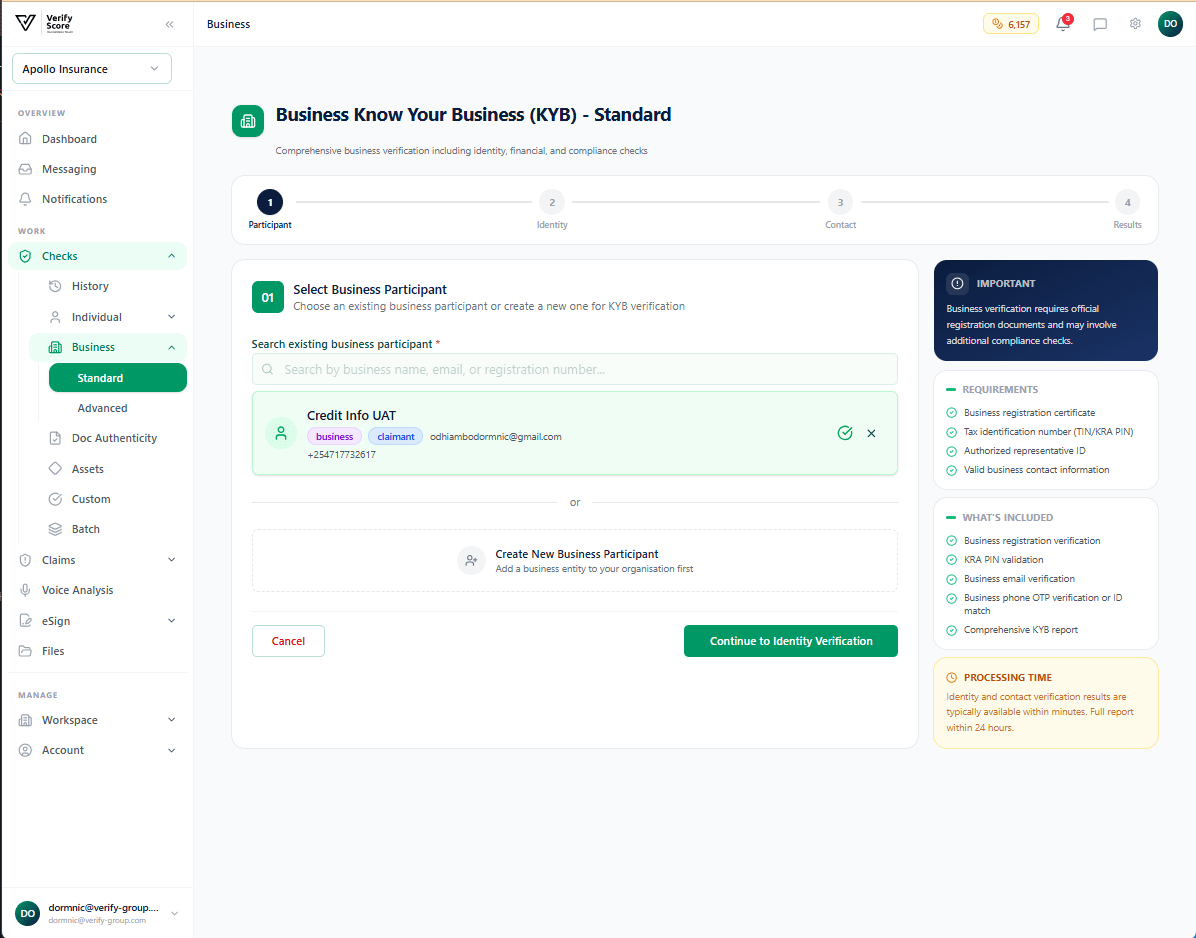 On the Standard Business KYC screen, you will see fields for:
* **Business Name** — the full registered legal name of the company (not a trading name or abbreviation)
* **Registration Number** — the company registration number issued by the relevant government registry (e.g., Companies Registry, Business Registration Bureau)
* **Country of Registration** — the country where the business is legally incorporated
* **Business Type** — whether the entity is a private limited company, public company, sole proprietorship, partnership, NGO, etc.
Use the **registered business name** exactly as it appears on the Certificate of Incorporation. Trading names or abbreviated names will not match the registry and will cause the check to fail.
Click **Run Verification** to submit.
### Step 2 — Verify the registered identity
On the Standard Business KYC screen, you will see fields for:
* **Business Name** — the full registered legal name of the company (not a trading name or abbreviation)
* **Registration Number** — the company registration number issued by the relevant government registry (e.g., Companies Registry, Business Registration Bureau)
* **Country of Registration** — the country where the business is legally incorporated
* **Business Type** — whether the entity is a private limited company, public company, sole proprietorship, partnership, NGO, etc.
Use the **registered business name** exactly as it appears on the Certificate of Incorporation. Trading names or abbreviated names will not match the registry and will cause the check to fail.
Click **Run Verification** to submit.
### Step 2 — Verify the registered identity
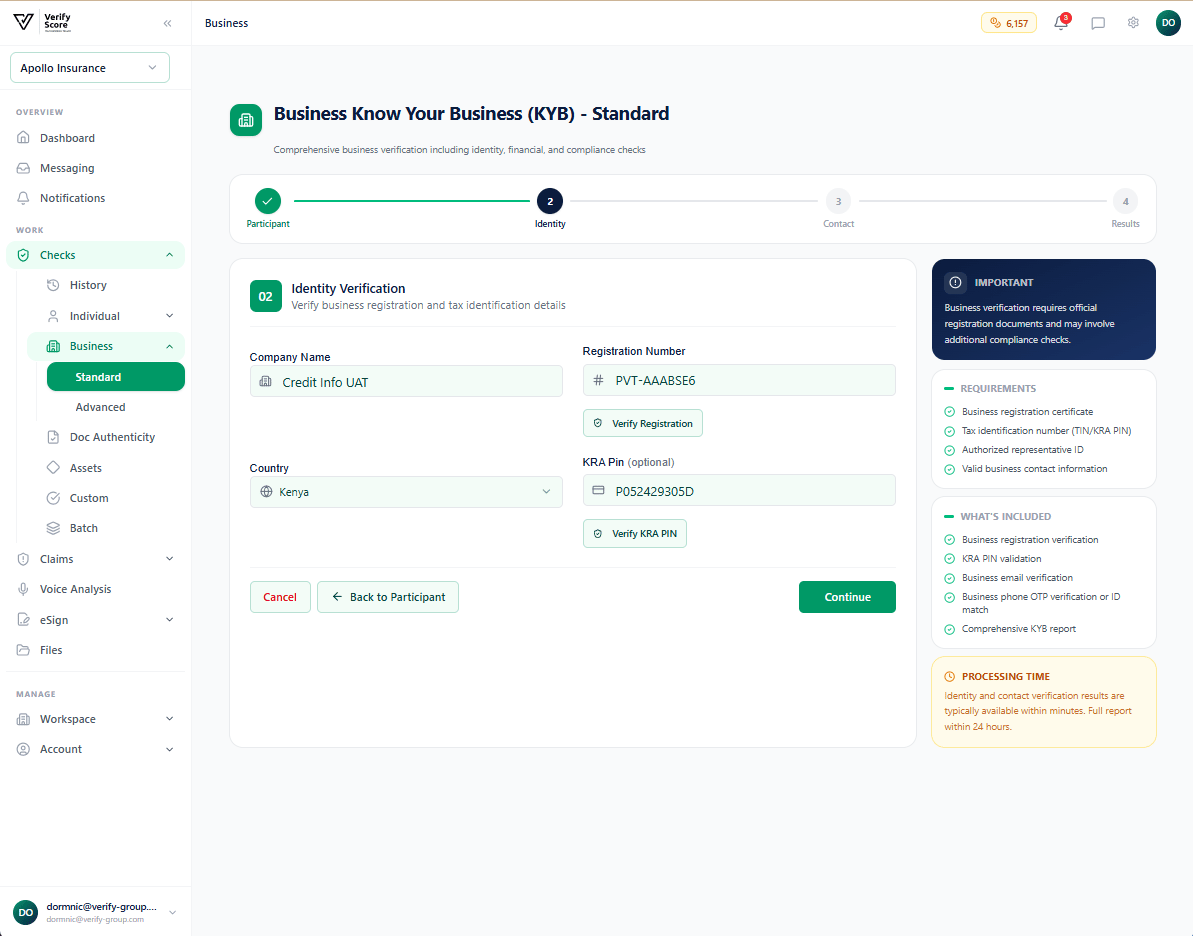 After submission, the platform queries the relevant business registry and returns:
| Field | Description |
| ------------------------- | ------------------------------------------------------- |
| **Registered Name** | The official company name as it appears in the registry |
| **Registration Number** | The registration number confirmed by the registry |
| **Registration Status** | Active, Dissolved, Struck Off, or Deregistered |
| **Date of Incorporation** | When the company was originally registered |
| **Registered Address** | The company's official registered office address |
| **Company Type** | The legal form of the entity |
A **green Active** badge confirms the company is in good standing. If the status is anything other than Active, escalate to your legal or compliance team before proceeding.
### Step 3 — Contact verification
After submission, the platform queries the relevant business registry and returns:
| Field | Description |
| ------------------------- | ------------------------------------------------------- |
| **Registered Name** | The official company name as it appears in the registry |
| **Registration Number** | The registration number confirmed by the registry |
| **Registration Status** | Active, Dissolved, Struck Off, or Deregistered |
| **Date of Incorporation** | When the company was originally registered |
| **Registered Address** | The company's official registered office address |
| **Company Type** | The legal form of the entity |
A **green Active** badge confirms the company is in good standing. If the status is anything other than Active, escalate to your legal or compliance team before proceeding.
### Step 3 — Contact verification
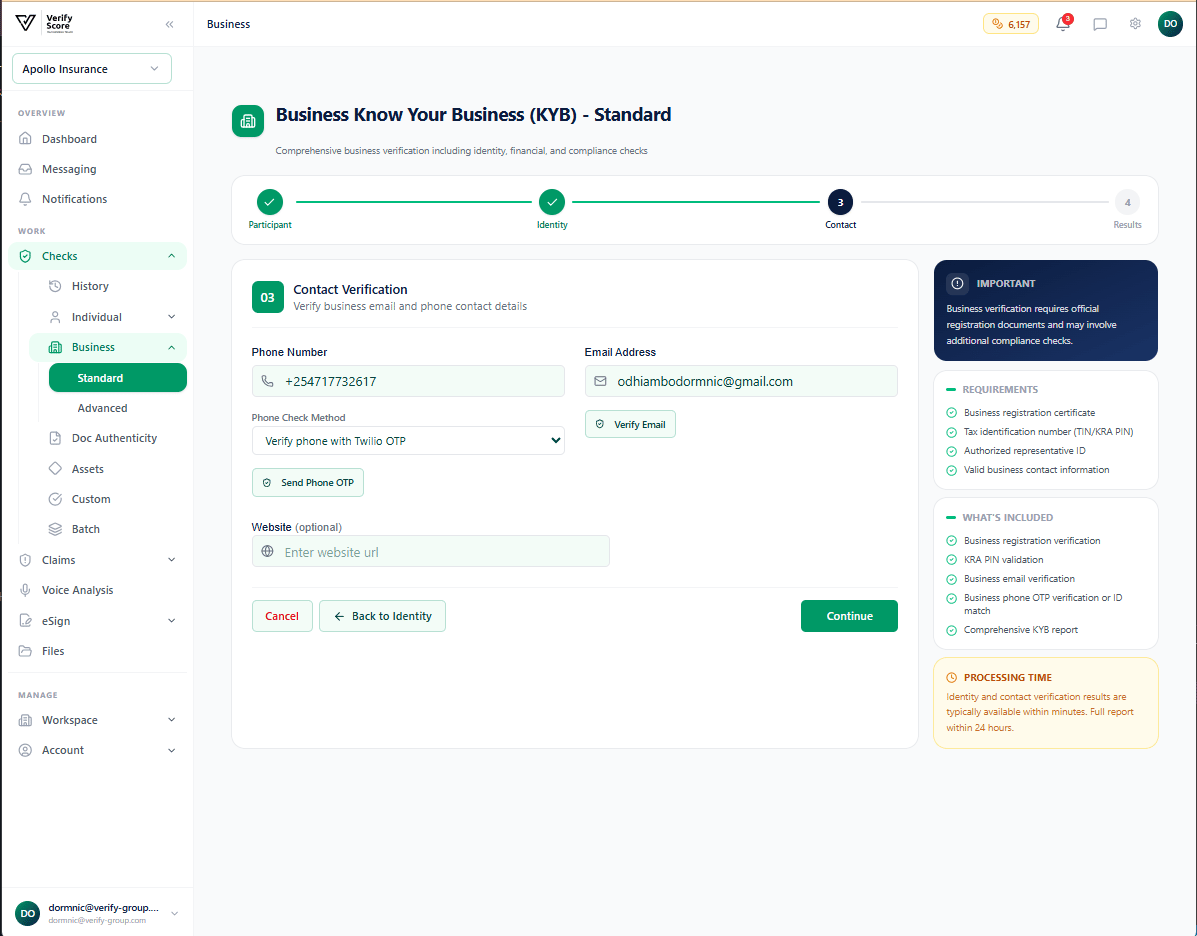 The contact step verifies the business's registered contact information:
* **Business email address** — a verification link is sent to the company's registered email
* **Business phone number** — a one-time code is sent to confirm the number is active and accessible
* **Registered website** — the platform checks whether the domain is active and matches the business name
This step guards against using compromised or fraudulent contact details during business registration.
### Step 4 — Review the Standard result
The contact step verifies the business's registered contact information:
* **Business email address** — a verification link is sent to the company's registered email
* **Business phone number** — a one-time code is sent to confirm the number is active and accessible
* **Registered website** — the platform checks whether the domain is active and matches the business name
This step guards against using compromised or fraudulent contact details during business registration.
### Step 4 — Review the Standard result
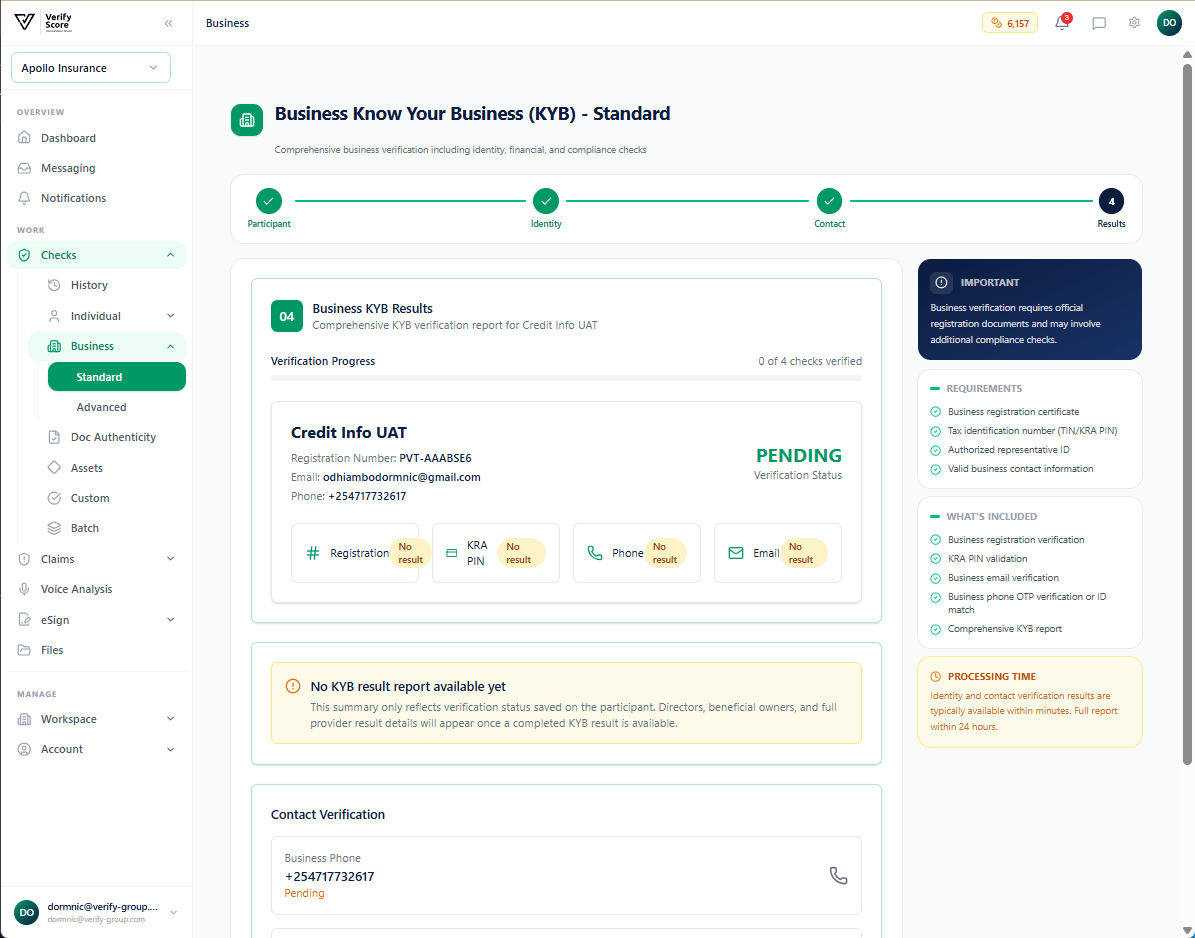 The results screen for Standard Business KYC shows:
* **Overall status** — Verified, Failed, or Manual Review
* **Registry match confidence** — how closely the submitted data matched the official registry
* **Identity details** — the company data returned by the registry
* **Contact verification** — pass/fail for email, phone, and website
From this screen you can download the report, sync the result to the participant's profile, or escalate to Advanced Business KYC.
***
## Advanced Business KYC
The Advanced flow adds deeper due diligence layers that are required for higher-risk business relationships, insurance underwriting, and regulated industry onboarding.
### Step 1 — Start the Advanced check
The results screen for Standard Business KYC shows:
* **Overall status** — Verified, Failed, or Manual Review
* **Registry match confidence** — how closely the submitted data matched the official registry
* **Identity details** — the company data returned by the registry
* **Contact verification** — pass/fail for email, phone, and website
From this screen you can download the report, sync the result to the participant's profile, or escalate to Advanced Business KYC.
***
## Advanced Business KYC
The Advanced flow adds deeper due diligence layers that are required for higher-risk business relationships, insurance underwriting, and regulated industry onboarding.
### Step 1 — Start the Advanced check
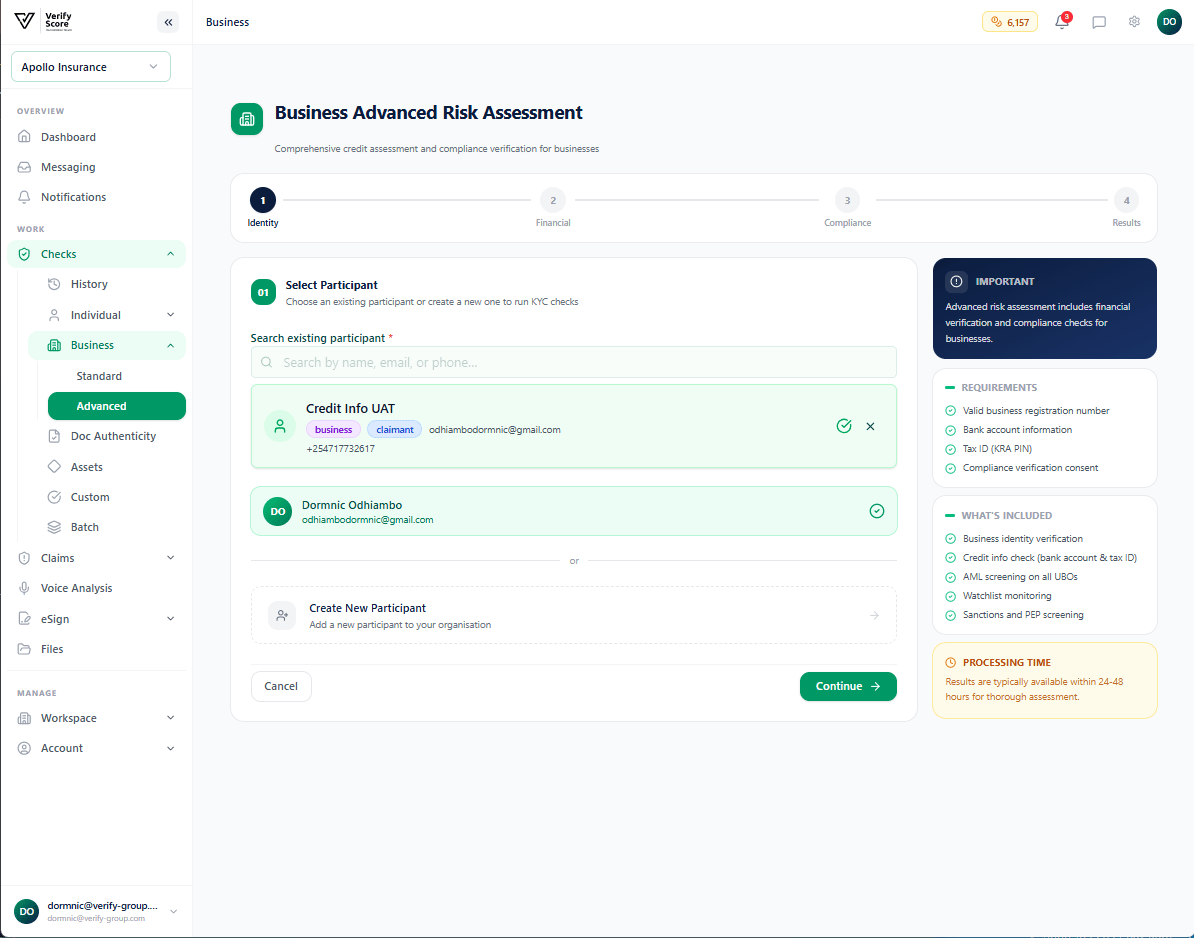 The Advanced Business KYC screen shows the full list of steps that will be completed as part of this check. Like the individual Advanced flow, steps can be completed sequentially or in stages over multiple sessions.
### Step 2 — Compliance and regulatory screening
The Advanced Business KYC screen shows the full list of steps that will be completed as part of this check. Like the individual Advanced flow, steps can be completed sequentially or in stages over multiple sessions.
### Step 2 — Compliance and regulatory screening
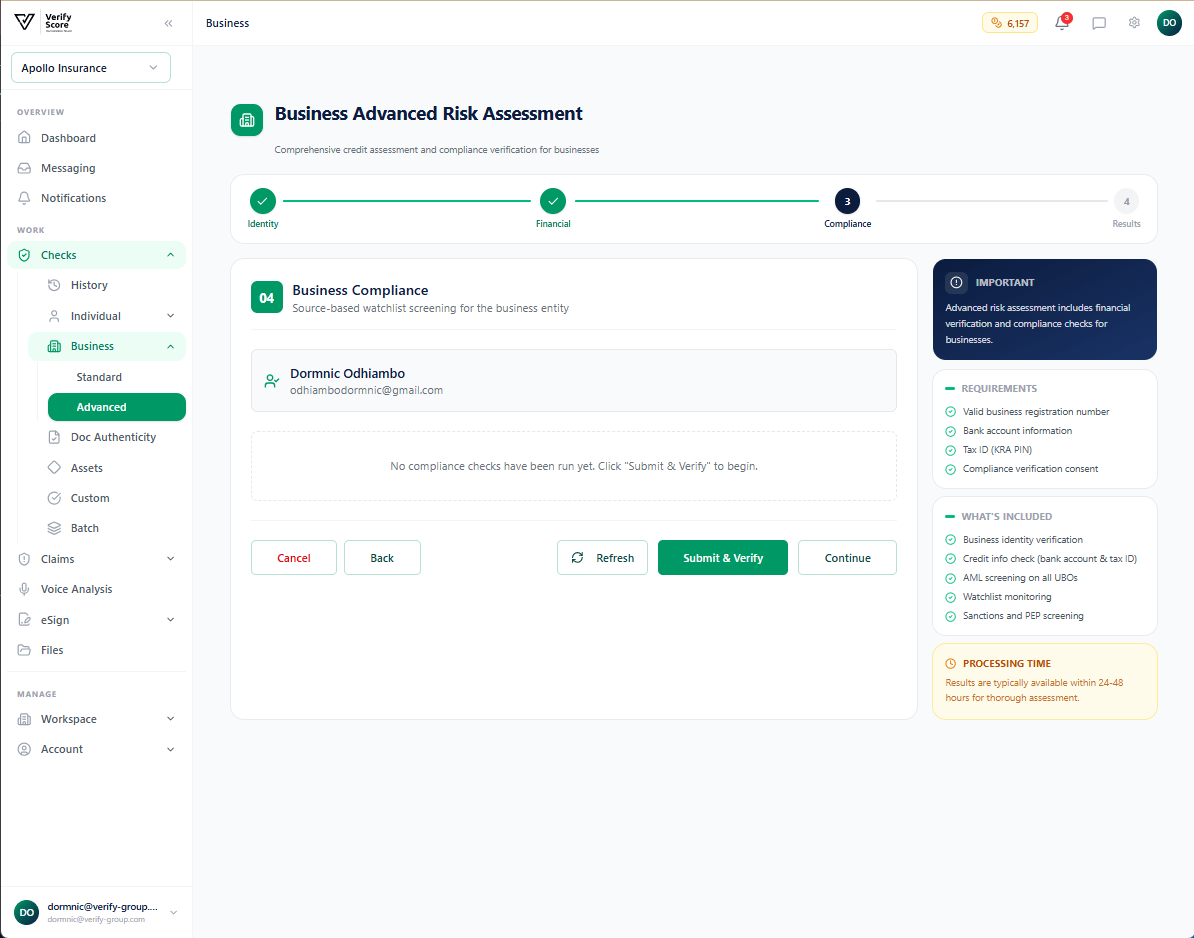 The compliance step screens the business and its key persons against:
* **Global sanctions lists** — OFAC, UN, EU, UK, and regional lists
* **Politically Exposed Persons (PEP) lists** — checking whether directors or UBOs are government officials or politically connected individuals
* **Adverse media** — automated news screening for negative coverage linked to the business name or its key persons
* **Regulatory enforcement databases** — financial regulator actions, court orders, and debarment lists
Each category shows a **hit count** and **risk level**. Any confirmed hits require manual review by your compliance team and must be documented before proceeding.
A PEP hit does not automatically disqualify a business — it triggers **Enhanced Due Diligence (EDD)** requirements under most AML regulations. Your compliance team will need to assess the specific risk and approve or decline the relationship.
### Step 3 — Financial health verification
The compliance step screens the business and its key persons against:
* **Global sanctions lists** — OFAC, UN, EU, UK, and regional lists
* **Politically Exposed Persons (PEP) lists** — checking whether directors or UBOs are government officials or politically connected individuals
* **Adverse media** — automated news screening for negative coverage linked to the business name or its key persons
* **Regulatory enforcement databases** — financial regulator actions, court orders, and debarment lists
Each category shows a **hit count** and **risk level**. Any confirmed hits require manual review by your compliance team and must be documented before proceeding.
A PEP hit does not automatically disqualify a business — it triggers **Enhanced Due Diligence (EDD)** requirements under most AML regulations. Your compliance team will need to assess the specific risk and approve or decline the relationship.
### Step 3 — Financial health verification
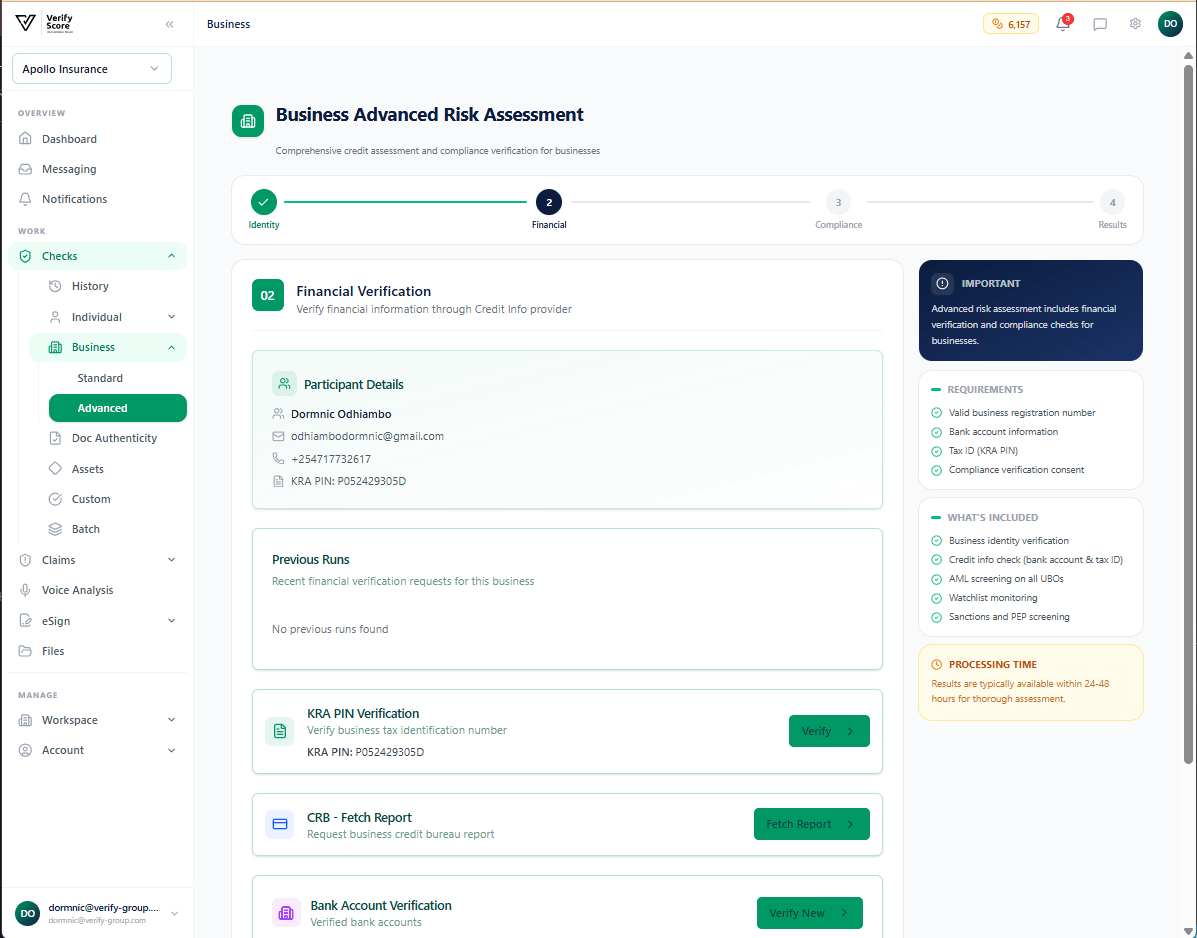 The financial step assesses the business's financial health and stability:
| Data Point | What it tells you |
| --------------------- | ---------------------------------------------------------------------------- |
| **Credit Rating** | The company's creditworthiness score from credit bureaus |
| **Outstanding Debt** | Known active loans, overdrafts, and credit facilities |
| **Payment History** | Whether the company has a history of late payments or defaults |
| **Filed Accounts** | Whether the company has filed its statutory accounts on time |
| **Insolvency Events** | Any past or current administration, receivership, or liquidation proceedings |
This information is critical for insurance underwriting (assessing the risk of a commercial policy) and trade credit decisions (assessing the risk of extending payment terms).
### Step 4 — Review the Advanced result
The financial step assesses the business's financial health and stability:
| Data Point | What it tells you |
| --------------------- | ---------------------------------------------------------------------------- |
| **Credit Rating** | The company's creditworthiness score from credit bureaus |
| **Outstanding Debt** | Known active loans, overdrafts, and credit facilities |
| **Payment History** | Whether the company has a history of late payments or defaults |
| **Filed Accounts** | Whether the company has filed its statutory accounts on time |
| **Insolvency Events** | Any past or current administration, receivership, or liquidation proceedings |
This information is critical for insurance underwriting (assessing the risk of a commercial policy) and trade credit decisions (assessing the risk of extending payment terms).
### Step 4 — Review the Advanced result
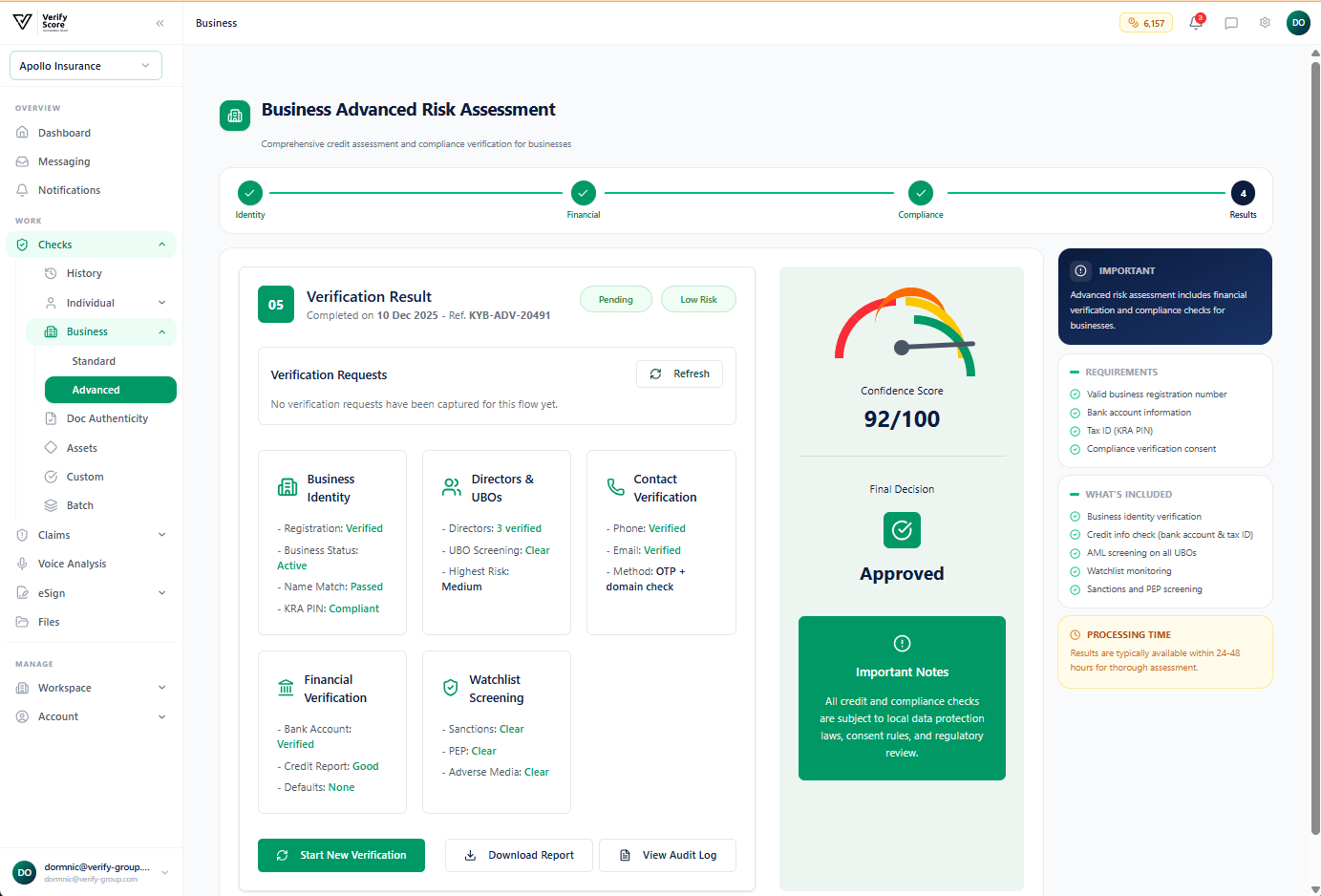 The Advanced Business KYC results screen consolidates every check into a single report:
| Section | What it covers |
| ------------------------- | --------------------------------- |
| **Overall Risk Rating** | Low / Medium / High / Critical |
| **Registry Verification** | Company registration and status |
| **Contact Verification** | Email, phone, and website checks |
| **Sanctions & PEP** | Global list screening results |
| **Adverse Media** | Negative news coverage findings |
| **Financial Health** | Credit rating and payment history |
From this screen, your team can:
* **Approve** the business for onboarding
* **Request additional documentation** for manual review
* **Decline** the business relationship based on the findings
All decisions and the reviewer's name are recorded in the audit trail.
***
## Understanding beneficial ownership
**Ultimate Beneficial Owner (UBO)** screening identifies the real human beings who ultimately own or control a company, even when ownership is structured through layers of holding companies. Verify Group's Advanced Business KYC automatically attempts to identify UBOs from registry data and presents them for individual screening.
If a UBO is identified, you can run an individual KYC check on them directly from the business verification result page.
***
## Next steps
Verify physical documents submitted by the business.
Run checks on individual directors or beneficial owners.
The Advanced Business KYC results screen consolidates every check into a single report:
| Section | What it covers |
| ------------------------- | --------------------------------- |
| **Overall Risk Rating** | Low / Medium / High / Critical |
| **Registry Verification** | Company registration and status |
| **Contact Verification** | Email, phone, and website checks |
| **Sanctions & PEP** | Global list screening results |
| **Adverse Media** | Negative news coverage findings |
| **Financial Health** | Credit rating and payment history |
From this screen, your team can:
* **Approve** the business for onboarding
* **Request additional documentation** for manual review
* **Decline** the business relationship based on the findings
All decisions and the reviewer's name are recorded in the audit trail.
***
## Understanding beneficial ownership
**Ultimate Beneficial Owner (UBO)** screening identifies the real human beings who ultimately own or control a company, even when ownership is structured through layers of holding companies. Verify Group's Advanced Business KYC automatically attempts to identify UBOs from registry data and presents them for individual screening.
If a UBO is identified, you can run an individual KYC check on them directly from the business verification result page.
***
## Next steps
Verify physical documents submitted by the business.
Run checks on individual directors or beneficial owners.