> ## Documentation Index
> Fetch the complete documentation index at: https://docs.verify-group.com/llms.txt
> Use this file to discover all available pages before exploring further.
# Document & Asset Verification
> Verify the authenticity of physical documents and confirm asset details — including vehicle logbooks, registration plates, KRA PINs, and driver's licences — using Verify Group's document intelligence tools.
## Overview
Physical documents can be forged, altered, or entirely fabricated. Verify Group's **Document Authenticity** and **Asset Verification** tools use a combination of optical character recognition (OCR), AI-powered image analysis, and direct registry lookups to confirm whether a document is genuine.
**When to use document verification:**
* Before accepting a national ID, passport, or driver's licence as proof of identity
* When processing an insurance claim and reviewing submitted supporting documents
* When verifying vehicle ownership for motor insurance underwriting
* When confirming a KRA PIN or business registration number submitted by a customer
***
## Document Authenticity
### What documents can be verified?
Verify Group can authenticate the following document types:
| Document Type | What is verified |
| ------------------------ | ------------------------------------------------------------------ |
| **National ID** | Chip authenticity, printed data integrity, photo match |
| **Passport** | MRZ line validity, chip data, document not reported lost/stolen |
| **Driver's Licence** | Registry lookup confirming the licence is active and not suspended |
| **Vehicle Logbook** | Ownership chain, current registered owner, lien status |
| **KRA PIN Certificate** | Active PIN status, registered taxpayer name, compliance status |
| **Vehicle Number Plate** | Registered vehicle details matching the plate number |
| **Custom Documents** | Any document type you have configured in your Custom Checks |
***
### Step 1 — Open Document Authenticity
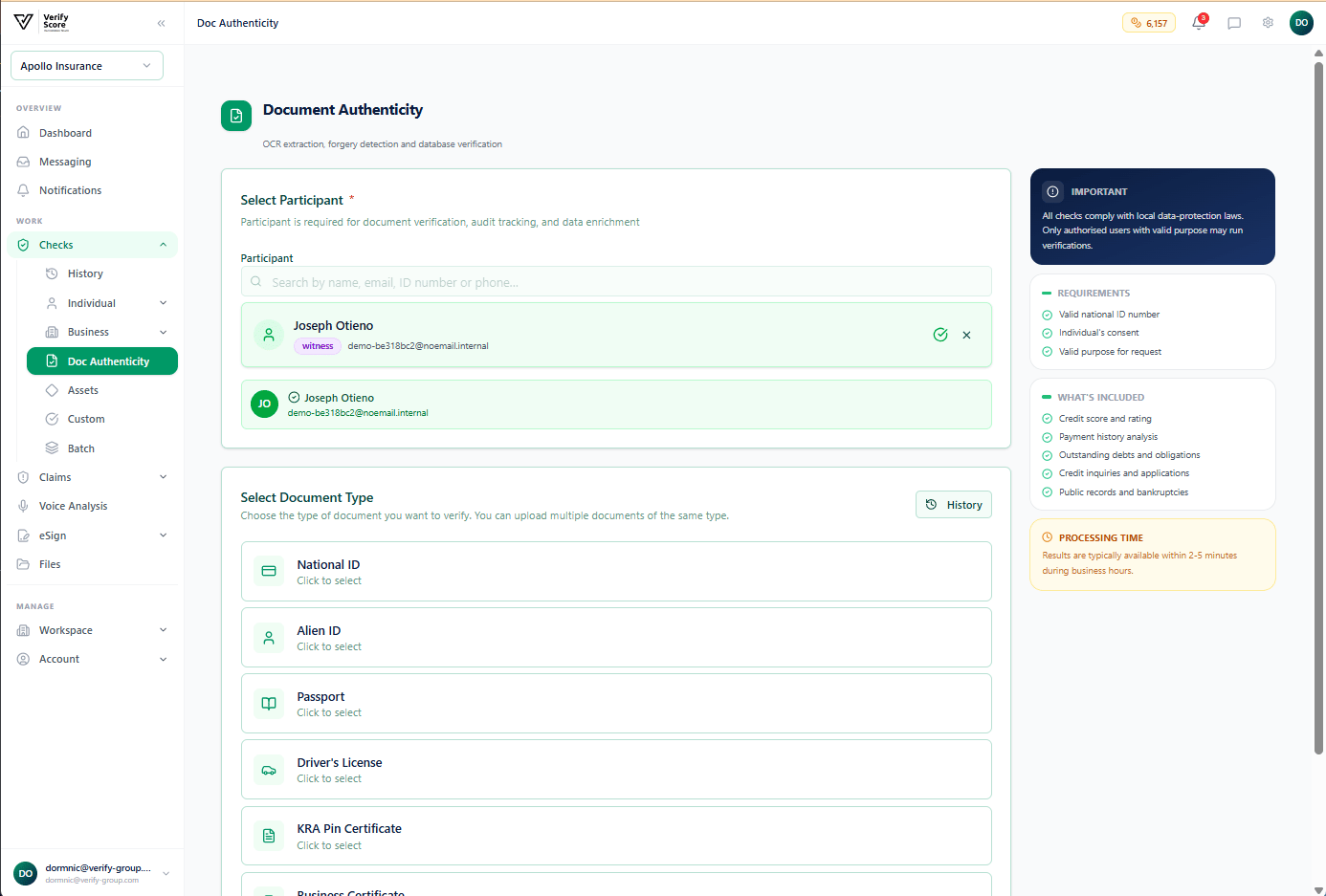 Navigate to **Checks → Doc Authenticity** in the left sidebar. You will see a form asking you to:
* **Select the document type** from the dropdown list
* **Select the country** that issued the document
* **Choose the verification scenario** (e.g., identity confirmation, ownership verification, compliance screening)
Select the appropriate options for the document you are verifying and click **Continue**.
### Step 2 — Upload the document
Navigate to **Checks → Doc Authenticity** in the left sidebar. You will see a form asking you to:
* **Select the document type** from the dropdown list
* **Select the country** that issued the document
* **Choose the verification scenario** (e.g., identity confirmation, ownership verification, compliance screening)
Select the appropriate options for the document you are verifying and click **Continue**.
### Step 2 — Upload the document
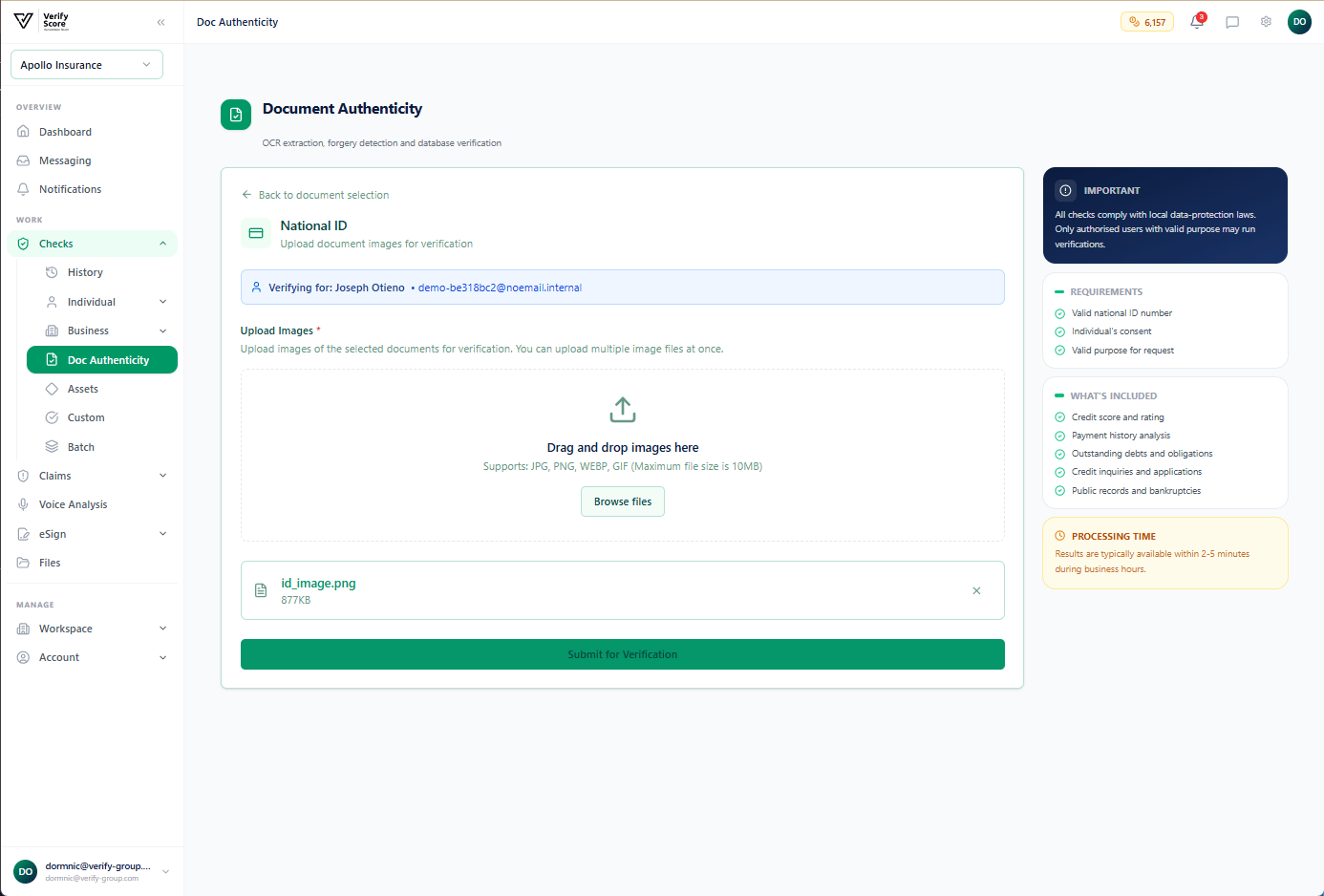 On the upload screen, you will see a drop zone where you can:
* **Drag and drop** an image file (JPG, PNG, or PDF) of the document
* **Click to browse** your computer's file system and select the file manually
**For best results:**
* Scan or photograph the document in good lighting, flat on a surface
* Ensure all four corners of the document are visible
* Make sure the text is sharp and legible — blurry images may produce inaccurate results
* Upload the **front and back** of two-sided documents (such as national IDs and driver's licences) as separate files
Do not upload photographs taken at an angle or with shadows across the document. The OCR and image analysis tools require a clear, flat, well-lit image to produce accurate results.
After uploading, click **Verify Document** to submit.
### Step 3 — Review the authenticity result
On the upload screen, you will see a drop zone where you can:
* **Drag and drop** an image file (JPG, PNG, or PDF) of the document
* **Click to browse** your computer's file system and select the file manually
**For best results:**
* Scan or photograph the document in good lighting, flat on a surface
* Ensure all four corners of the document are visible
* Make sure the text is sharp and legible — blurry images may produce inaccurate results
* Upload the **front and back** of two-sided documents (such as national IDs and driver's licences) as separate files
Do not upload photographs taken at an angle or with shadows across the document. The OCR and image analysis tools require a clear, flat, well-lit image to produce accurate results.
After uploading, click **Verify Document** to submit.
### Step 3 — Review the authenticity result
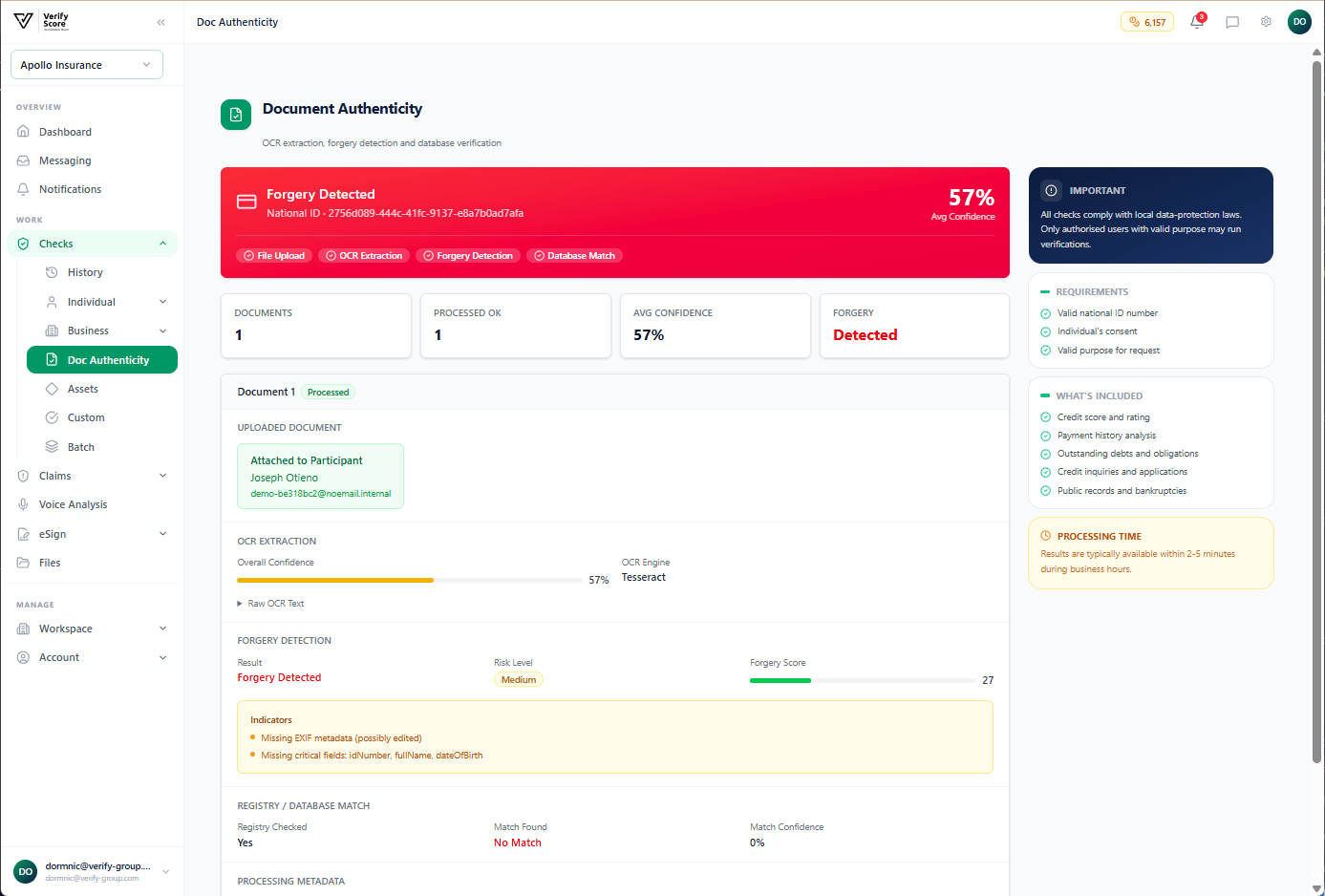 The results screen appears within a few seconds and shows:
**Authenticity Score panel:**
* A percentage score from 0–100 representing how confident the system is that the document is genuine
* Individual sub-scores for **Print Quality**, **Security Features**, **Data Consistency**, and **Registry Match**
**Extracted Data panel:**
* All text extracted from the document by OCR — name, ID number, date of birth, expiry date, etc.
* A side-by-side comparison of the extracted data against the information submitted (if a participant record was linked)
**Decision indicator:**
* **Authentic** (green) — the document passed all checks
* **Suspicious** (amber) — one or more checks flagged a potential issue; manual review recommended
* **Rejected** (red) — the document shows clear signs of tampering or forgery
An **Authentic** result means the document passed automated checks. It does not replace a physical inspection by a trained document examiner for high-stakes decisions. For critical cases, always combine automated verification with a manual review.
From this screen you can download the full authenticity report as a PDF and attach it to a claims record or participant profile.
***
## Asset Verification
Asset verification confirms the details of physical assets — primarily vehicles — by looking up their official registry records.
### Step 1 — Open Asset Verification
The results screen appears within a few seconds and shows:
**Authenticity Score panel:**
* A percentage score from 0–100 representing how confident the system is that the document is genuine
* Individual sub-scores for **Print Quality**, **Security Features**, **Data Consistency**, and **Registry Match**
**Extracted Data panel:**
* All text extracted from the document by OCR — name, ID number, date of birth, expiry date, etc.
* A side-by-side comparison of the extracted data against the information submitted (if a participant record was linked)
**Decision indicator:**
* **Authentic** (green) — the document passed all checks
* **Suspicious** (amber) — one or more checks flagged a potential issue; manual review recommended
* **Rejected** (red) — the document shows clear signs of tampering or forgery
An **Authentic** result means the document passed automated checks. It does not replace a physical inspection by a trained document examiner for high-stakes decisions. For critical cases, always combine automated verification with a manual review.
From this screen you can download the full authenticity report as a PDF and attach it to a claims record or participant profile.
***
## Asset Verification
Asset verification confirms the details of physical assets — primarily vehicles — by looking up their official registry records.
### Step 1 — Open Asset Verification
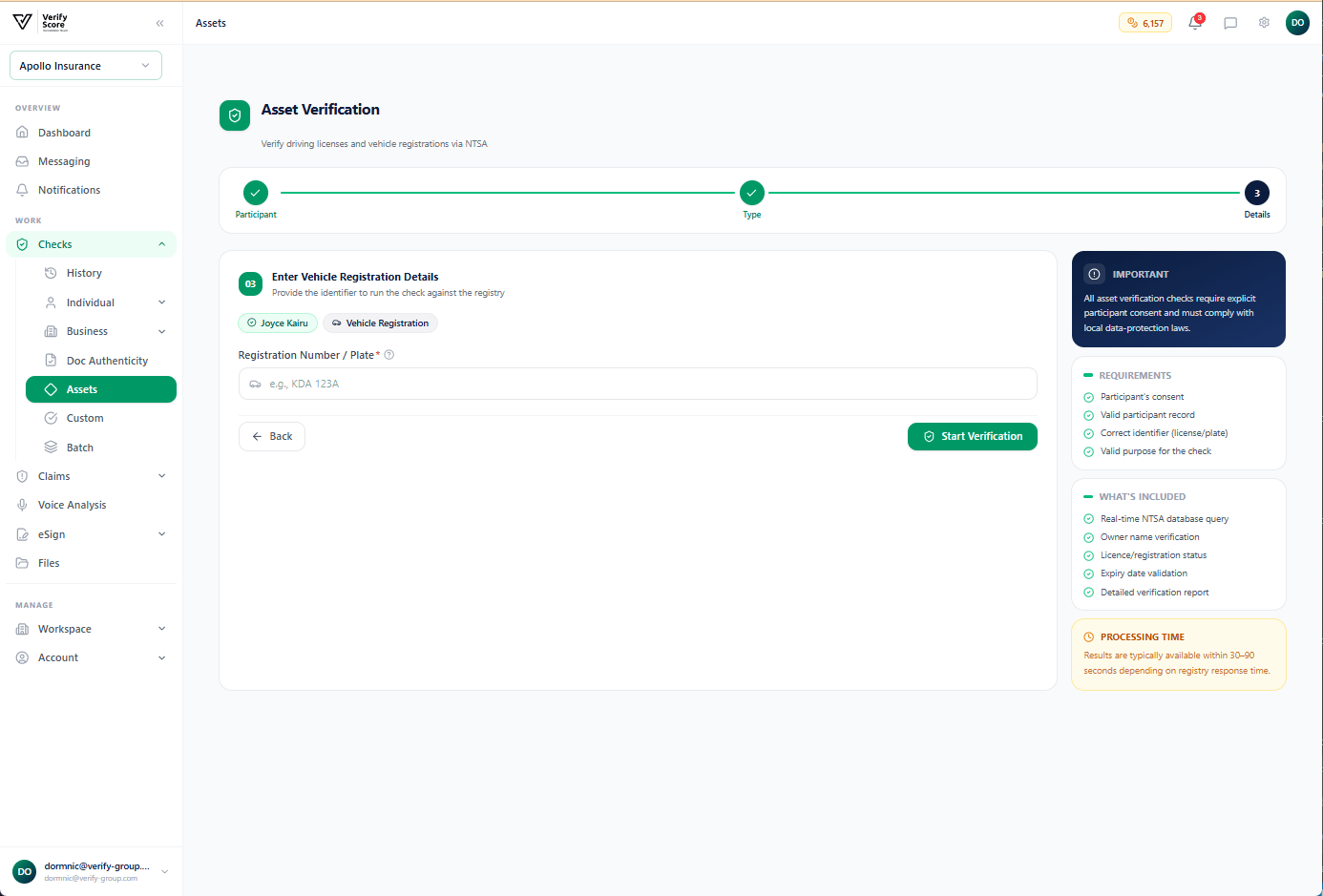
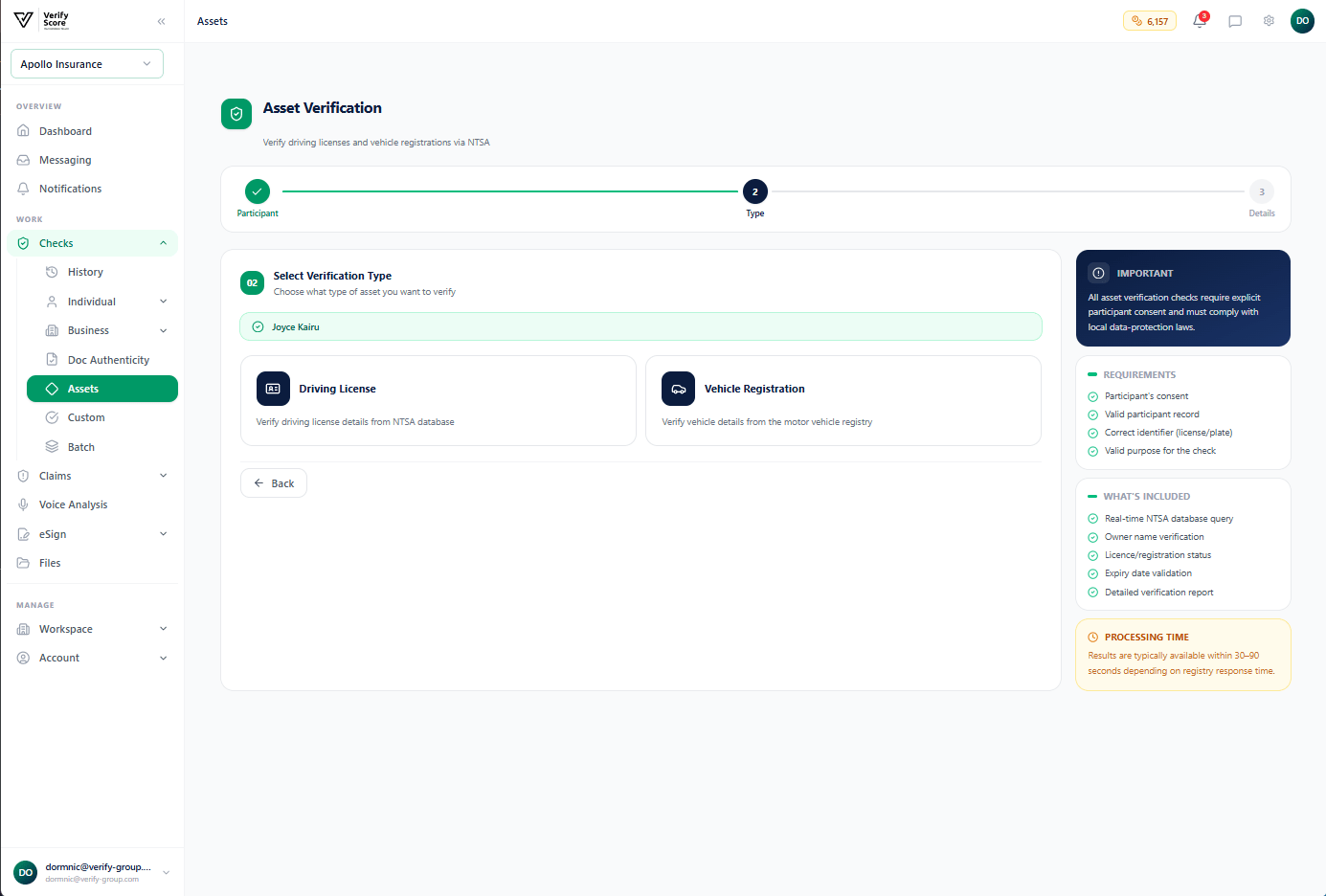 Navigate to **Checks → Assets** in the left sidebar. On this screen, select:
* **Asset Type** — currently supports Vehicles (motor, motorcycle, commercial)
* **Identifier Type** — choose between **Registration Plate** or **Chassis Number (VIN)**
* **Identifier Value** — type the plate number or chassis number exactly
Click **Verify Asset** to run the lookup.
### Step 2 — Review the asset result
Navigate to **Checks → Assets** in the left sidebar. On this screen, select:
* **Asset Type** — currently supports Vehicles (motor, motorcycle, commercial)
* **Identifier Type** — choose between **Registration Plate** or **Chassis Number (VIN)**
* **Identifier Value** — type the plate number or chassis number exactly
Click **Verify Asset** to run the lookup.
### Step 2 — Review the asset result
 The results screen returns the following information from the official vehicle registry:
| Field | Description |
| ----------------------- | -------------------------------------------------------------------------- |
| **Make & Model** | The manufacturer and model of the vehicle |
| **Year of Manufacture** | The year the vehicle was built |
| **Colour** | The registered colour |
| **Engine Capacity** | Engine size in cubic centimetres |
| **Fuel Type** | Petrol, diesel, electric, or hybrid |
| **Registered Owner** | The current legal owner's name |
| **Registration Date** | When the vehicle was first registered |
| **Expiry Date** | When the current registration expires |
| **Encumbrances** | Whether the vehicle has any active loans, liens, or legal holds against it |
| **Theft Status** | Whether the vehicle has been reported stolen |
If the **Registered Owner** name does not match the person claiming ownership (for example, in an insurance claim), this is a significant red flag. Escalate the case to your fraud team immediately.
**For motor insurance claims**, attach the asset verification result directly to the claim record by clicking **Link to Claim** on the result screen and selecting the relevant claim from the dropdown.
***
## Next steps
Build your own verification scenarios for documents not covered by the standard flows.
Attach verified documents and asset details to an insurance claim.
The results screen returns the following information from the official vehicle registry:
| Field | Description |
| ----------------------- | -------------------------------------------------------------------------- |
| **Make & Model** | The manufacturer and model of the vehicle |
| **Year of Manufacture** | The year the vehicle was built |
| **Colour** | The registered colour |
| **Engine Capacity** | Engine size in cubic centimetres |
| **Fuel Type** | Petrol, diesel, electric, or hybrid |
| **Registered Owner** | The current legal owner's name |
| **Registration Date** | When the vehicle was first registered |
| **Expiry Date** | When the current registration expires |
| **Encumbrances** | Whether the vehicle has any active loans, liens, or legal holds against it |
| **Theft Status** | Whether the vehicle has been reported stolen |
If the **Registered Owner** name does not match the person claiming ownership (for example, in an insurance claim), this is a significant red flag. Escalate the case to your fraud team immediately.
**For motor insurance claims**, attach the asset verification result directly to the claim record by clicking **Link to Claim** on the result screen and selecting the relevant claim from the dropdown.
***
## Next steps
Build your own verification scenarios for documents not covered by the standard flows.
Attach verified documents and asset details to an insurance claim.